Test My Internet Speed vs. Website Speed: What to Fix
Test my internet speed or your website's? Learn the difference, how to read your results, and which fixes to make first for a faster site.
By Studio DMLA · Published
Updated
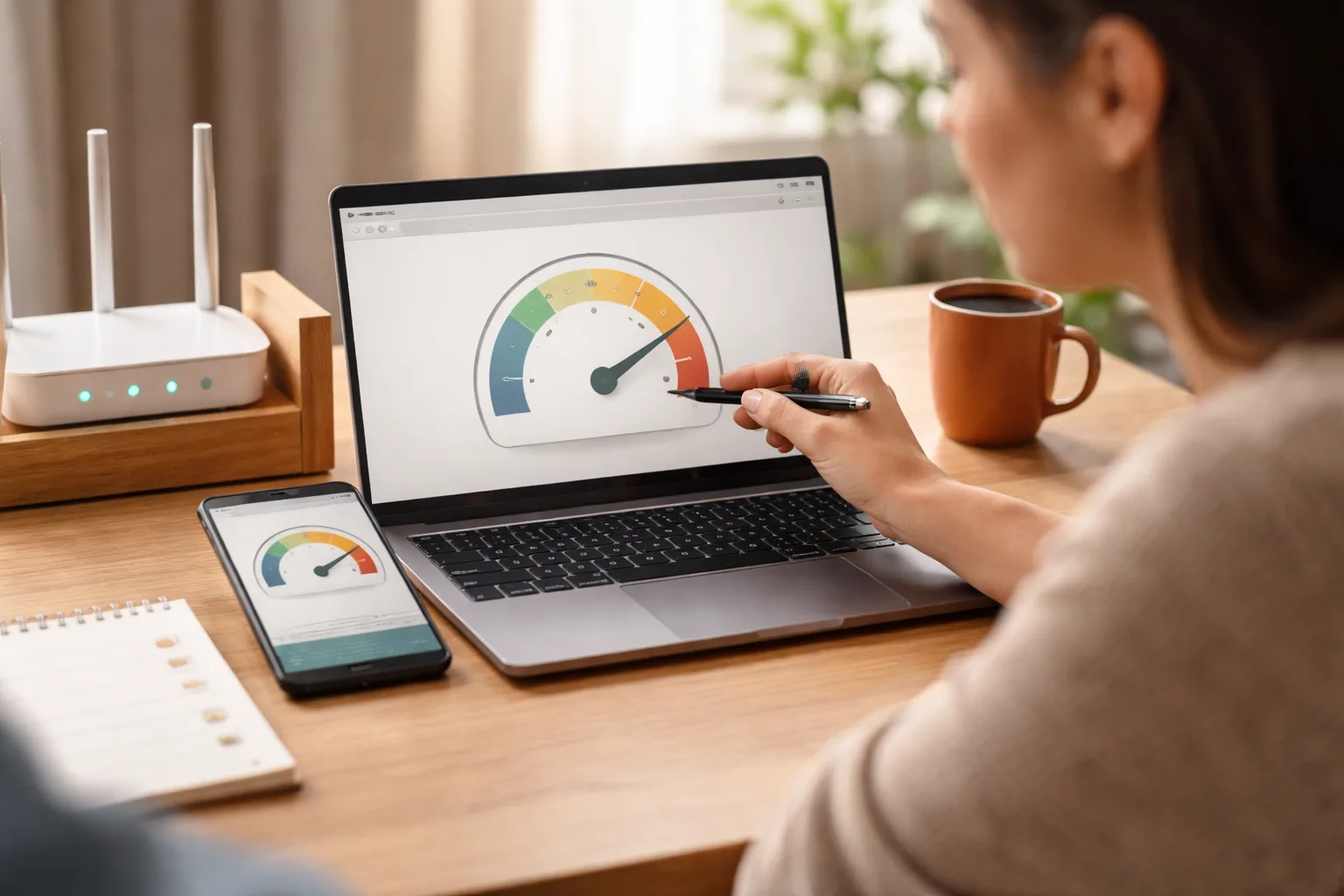
Running an internet speed test measures your own connection, not your website. When you search “test my internet speed,” you learn how fast your office or home network is, and nothing about how a customer’s phone loads your pages. Only a website speed test shows that, and it is the one that tells you what to fix.
Many owners run a connection test, see a good number, and assume the website is fine. Then a customer on a phone waits several seconds for a page to respond.
This guide explains what each test tells you, how to run a clean internet speed check, how to read website results, and a practical order for fixing problems, without chasing a perfect score.
Internet speed test vs. website speed test
An internet speed test checks your connection, while a website speed test checks your page. The first is about your office or home network. The second is about your server, your code, your images, and your visitors’ devices.
If your connection is slow, you will feel it when you upload files or join video calls. If your website is slow, your customers feel it, and your own fast connection can hide the problem.
| Question | Internet speed test | Website speed test |
|---|---|---|
| What it measures | Your connection (download, upload, latency) | How your pages load and respond |
| Who it affects | You and your team | Your visitors and customers |
| What you fix | Provider, router, plan | Images, code, hosting, caching |
| Best used for | Remote work and uploads | Conversions and search visibility |
How to run a useful internet speed test
A connection test is still worth doing, especially if your team works remotely or uploads large files. A single reading is not very reliable, so follow a few simple habits:
- Run it at different times of day. Test in the morning, mid-afternoon, and evening. Speeds can drop when many people in your area are online at once.
- Compare a cable and Wi-Fi. Plug a computer into the router with an Ethernet cable and test, then test again over Wi-Fi from where you normally work. A big gap usually points to your router or its placement, not your provider.
- Close other activity. Pause video calls, cloud backups, and large downloads while you test.
- Compare results with your plan. Look at the download and upload speeds your provider lists for your plan. Many plans are advertised as “up to” a certain speed, so some difference is normal. A result far below the plan, repeated across several tests, is worth raising with your provider.
In Canada, connection quality can vary by region, building, and provider, so your results may differ from a colleague’s in another city. Treat your own numbers as the reference, and keep a short log of results with dates and times.
None of this tells you how your website performs for visitors. For that, you need a website speed test.
Which numbers matter in website speed results
Focus on the Core Web Vitals first, because they describe what real visitors experience. They are a set of user-experience metrics published by Google, and the set evolves over time, as explained on web.dev.
Three ideas are worth knowing:
- Loading: how quickly the main content appears (LCP, Largest Contentful Paint). A slow result usually means a large image, a slow server, or content that is blocked while it waits for other files.
- Interactivity: how quickly the page reacts when someone taps or clicks (INP, Interaction to Next Paint). Slow results often come from heavy scripts competing for the browser’s attention.
- Visual stability: whether the layout jumps while loading (CLS, Cumulative Layout Shift). Images without set dimensions and late-loading banners are common causes.
Your testing tool labels each one as good, needs improvement, or poor. Use those labels as your guide, and start with whichever is flagged as poor on your most important pages.
Lab data vs. field data
Lab data is a simulated test run under controlled conditions; field data comes from real visitors using your site over time. Both are useful, but they answer different questions.
In PageSpeed Insights: enter a page address and run the test. Near the top, the section about what real users are experiencing is field data. It appears only when enough visitor data exists for that page or site. Further down, the diagnostics section shows lab data, a simulated load of the page with a list of specific opportunities, such as oversized images or unused code.
In Search Console: open the Core Web Vitals report in the Experience section. It is based on field data and groups your pages by status, separately for mobile and desktop. It is useful for spotting patterns, such as a whole group of service pages flagged as slow, rather than debugging a single page. Low-traffic sites may see limited or no data here.
Lab scores change from run to run because network and server conditions vary, so do not panic over a small swing. When the two disagree, trust field data for the question “are real people having a good experience?” and use lab data to check whether a specific fix worked.
What to fix first
Fix the problem that affects your most important pages and your largest group of visitors first. A simple order works for most small business sites.
- Test the pages that earn money. Check your top service page, contact page, and a typical blog post, not just the home page.
- Test on mobile. Many of your visitors may be on phones, often on slower connections. To confirm, check the device report in GA4 (Google Analytics 4) to see what share of your visitors use mobile, tablet, and desktop.
- Fix the main content element. If the hero image or headline loads late, start there.
- Reduce heavy scripts. Chat widgets, trackers, and sliders can slow interaction.
- Stabilize the layout. Set image dimensions and reserve space for banners and embeds.
- Review hosting and caching. A slow server response can limit everything else.
A practical example
Imagine a hypothetical plumbing company in Toronto whose home page shows a score in the red. The report points to a hero photo of roughly 3 MB and a chat widget that loads on every page. These figures are illustrative, not real measurements. In a case like this, resizing and properly compressing the photo, and loading the chat widget only on the contact page, could address the two biggest causes without a redesign. You would then re-test to confirm the change helped.
Common mistakes that waste your time
A common mistake is chasing a score of 100 instead of improving real visitor experience. A score is a guide, not the goal.
- Testing only the home page and only on desktop.
- Compressing images but ignoring the main image. Lazy-loading the hero image, for example, can delay it instead of helping.
- Confusing your connection with your site. A fast office network says nothing about visitors.
- Changing many things at once. You cannot tell which change helped.
Does website speed matter for local SEO?
Speed supports local SEO mainly through user experience. A page that loads and responds quickly is easier to use for someone searching on a phone for a nearby business, and that may help calls, form fills, and bookings.
Treat it as one part of the whole: accurate business information, clear service pages, and good reviews matter too. If you want a structured starting point, a Website Health Audit reviews speed, technical issues, and priorities with a defined scope.
A simple routine to keep results healthy
Check speed on a schedule rather than only when something feels wrong. A short routine keeps problems small.
- Test your three most important pages monthly, on mobile.
- Re-test after installing plugins, changing themes, or adding scripts.
- Record results in a simple sheet with the date and what changed.
- Compress and size images before uploading them.
- Keep WordPress, themes, and plugins updated and remove unused ones.
- Run a connection test now and then on your own network, so you can rule it out when something feels slow on your end.
Frequently asked questions
Are “test my internet speed” and a website speed test the same thing?
No. One measures your connection; the other measures how your site loads and responds for visitors.
Why does my PageSpeed score change every time?
Lab tests run under slightly different network and server conditions each time. Compare trends across several runs rather than a single score.
Which metric should I fix first?
Start with whichever is flagged as poor on your most important pages. For many sites, that is the main content loading late.
Should I trust lab data or field data?
Use field data to judge real visitor experience and lab data to test and debug specific changes.
Does site speed affect local SEO?
It can affect the experience of people who find you through local searches, which may support conversions. It works alongside your other local signals.
If you would rather not sort through the results alone, a Website Health Audit from Studio DMLA gives you a fixed scope, a prioritized list of speed and technical fixes, and a clear next step before you commit to any work. Visit studio-dmla.ca to learn more.